
Getting started
Kurobayomi lets you watch anime and read manga on your computer. It comes with no sources of its own: you add a repository, a link that someone you trust gives you, and its sources show up in the app. This takes about five minutes. If you do not have the app yet, see Download.
1. Open the app
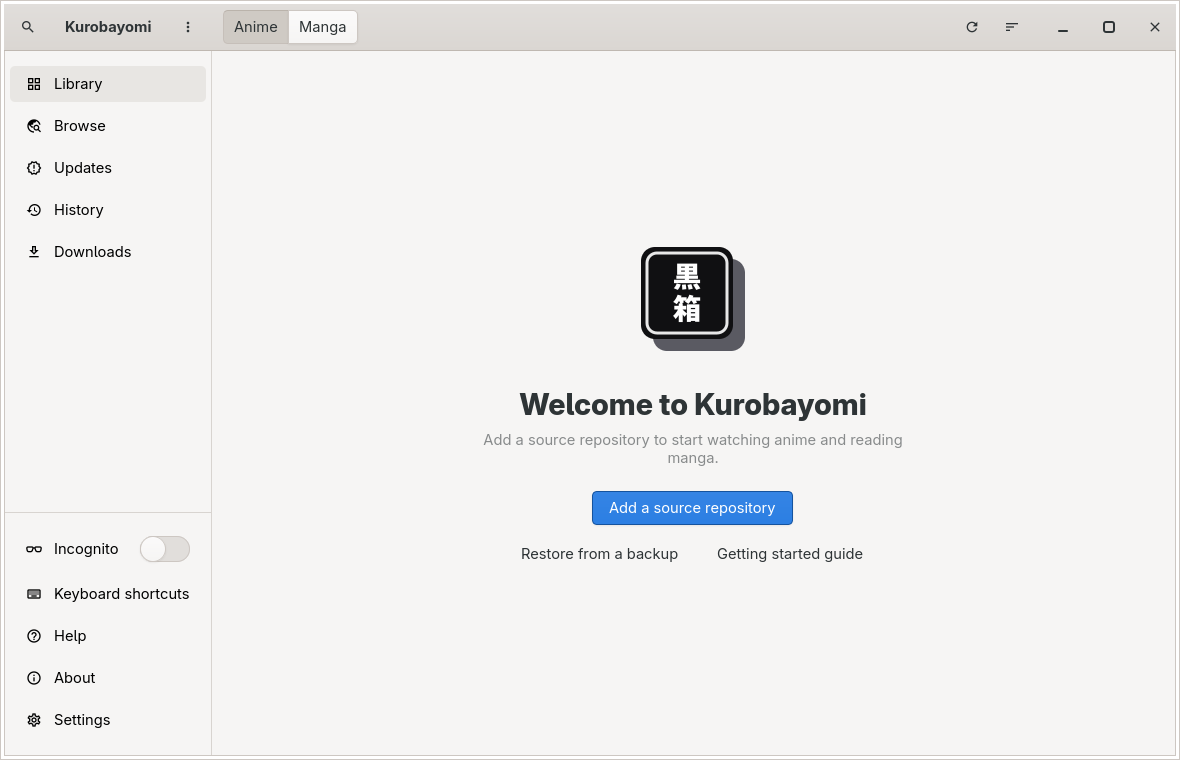
The first time you open Kurobayomi, you see the welcome screen. There is nothing to set up first.
2. Add a repository
A repository is a list of sources that someone publishes at a web address. Kurobayomi does not choose one for you.
Click Add a source repository.
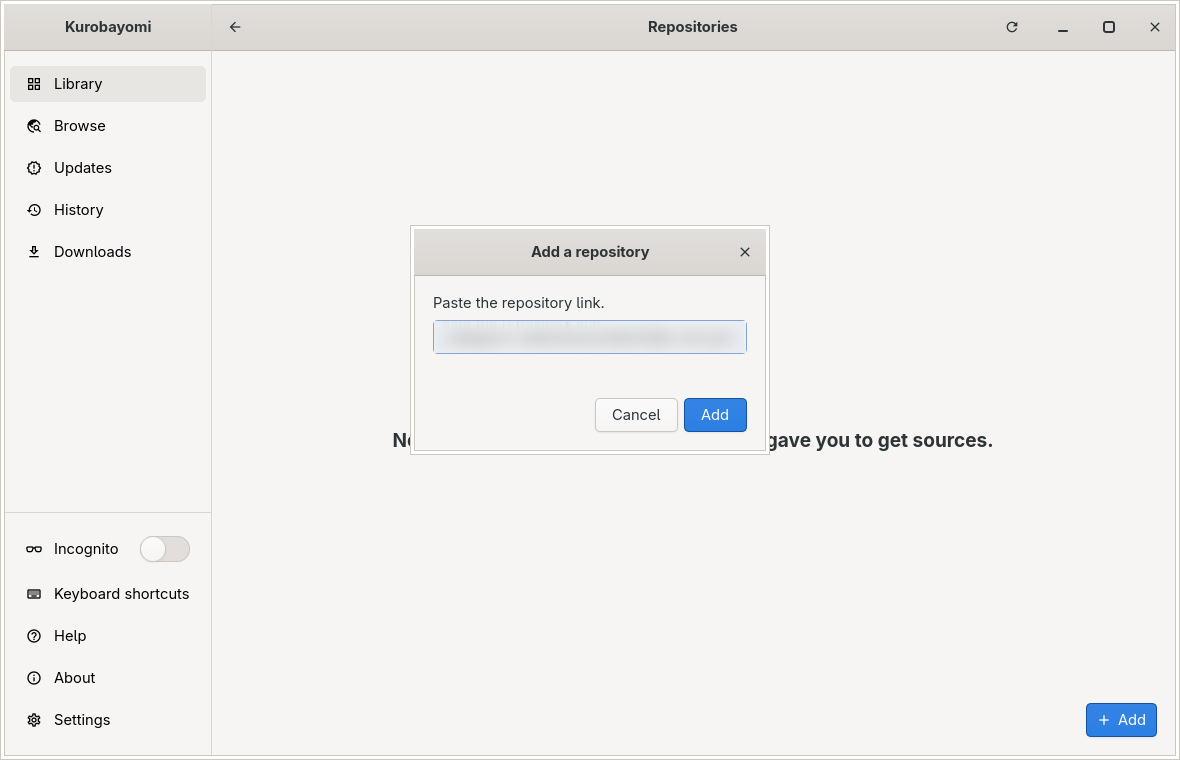
Paste the repository link you were given.
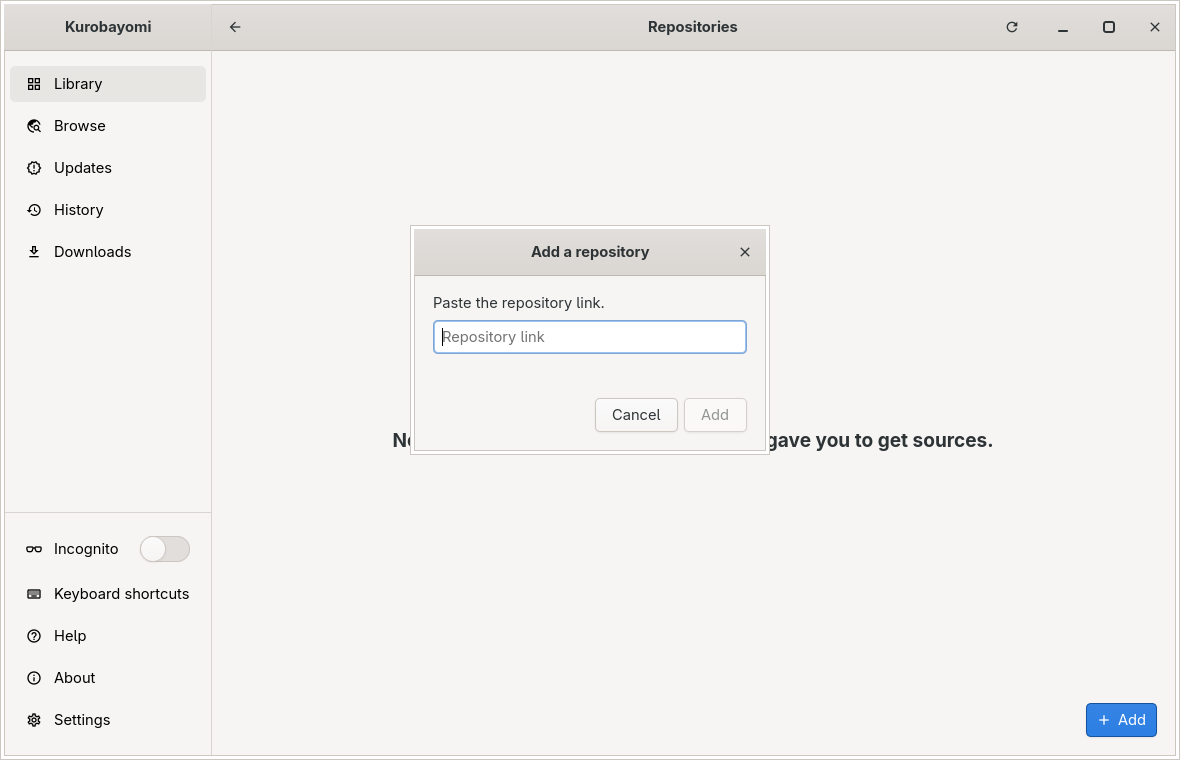
Click Add. Kurobayomi downloads the repository's sources; this takes a few seconds.
TIP
If a repository's website has an Add to Kurobayomi button, clicking it opens Kurobayomi with the link already filled in. Aniyomi and Tachiyomi repositories, and their Add to Aniyomi or Add to Tachiyomi buttons, do not work in Kurobayomi: their extensions are Android apps.
3. Your sources
When the repository is added, Kurobayomi takes you to Browse. The Anime and Manga buttons at the top switch between the two kinds of sources.
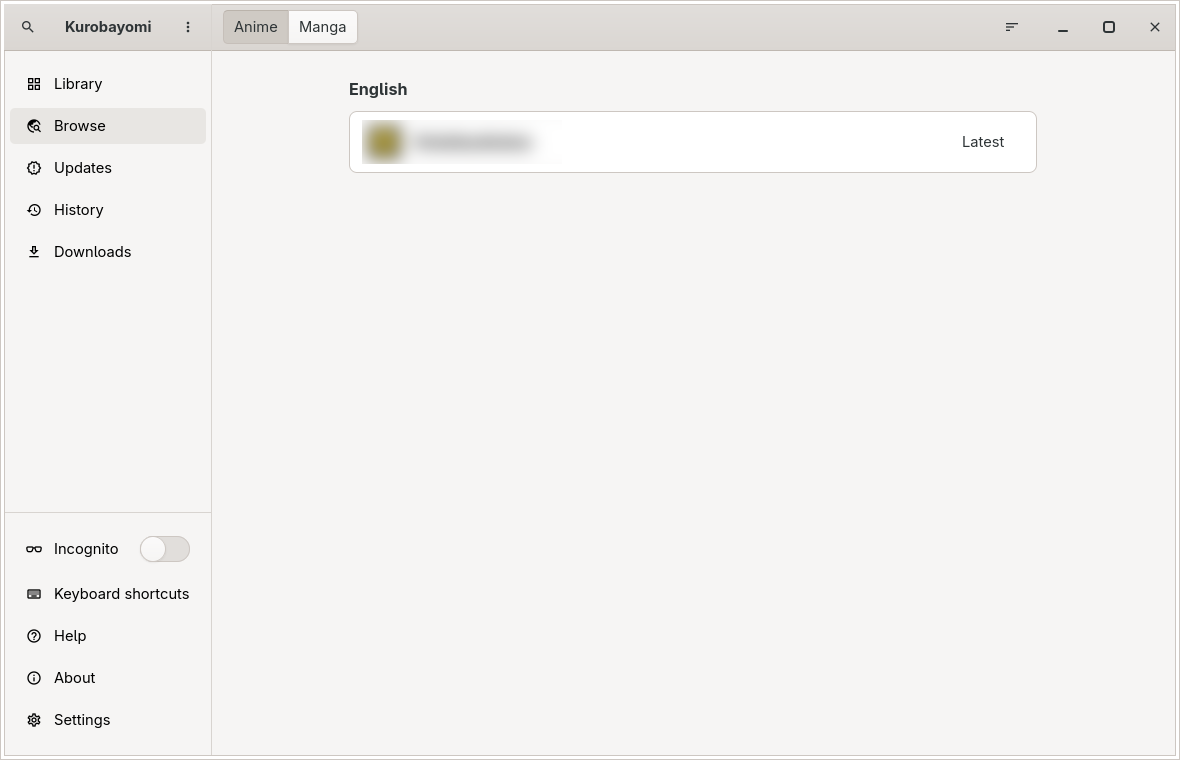
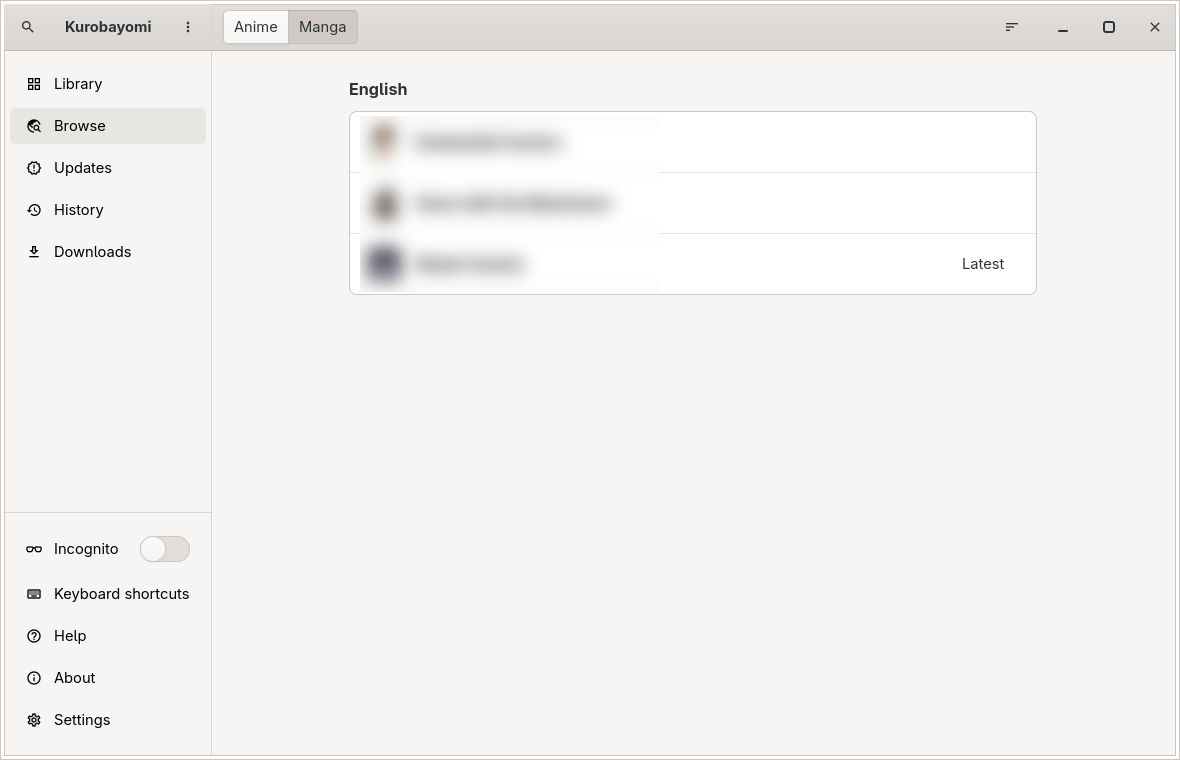
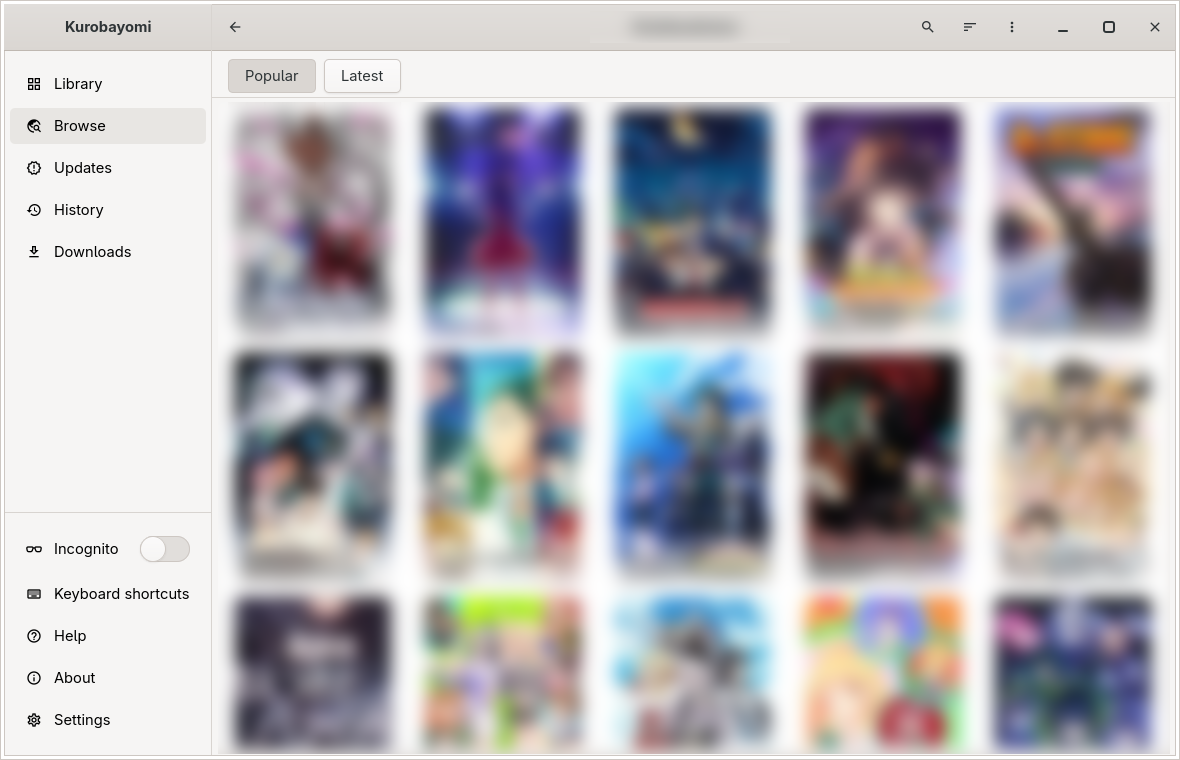
Click a source to see what it has. The Popular list opens first.
4. Search
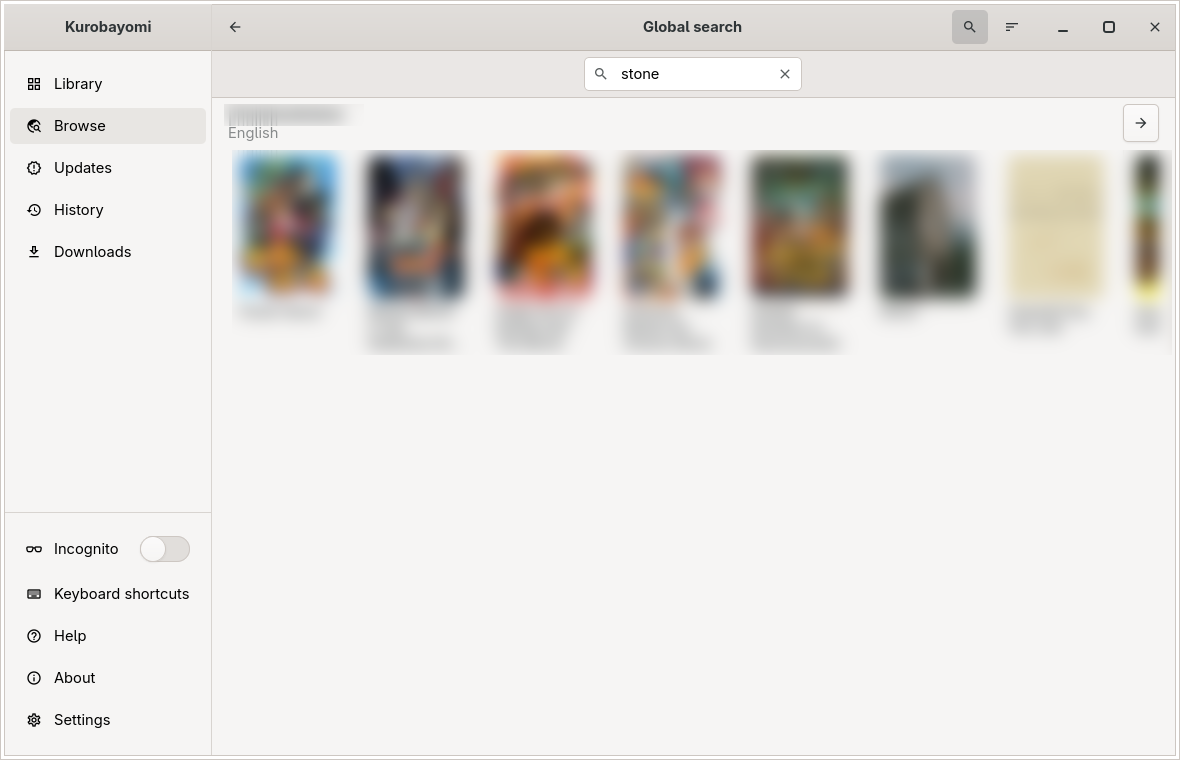
Click the search button 🔍 next to Kurobayomi at the top of the sidebar (in a small window it is at the left of the top bar), type and press Enter. Kurobayomi looks through all your sources of the kind you are viewing and shows the results per source.
5. Watch or read
Click a title to open its page: the cover, the details and the list of episodes or chapters.
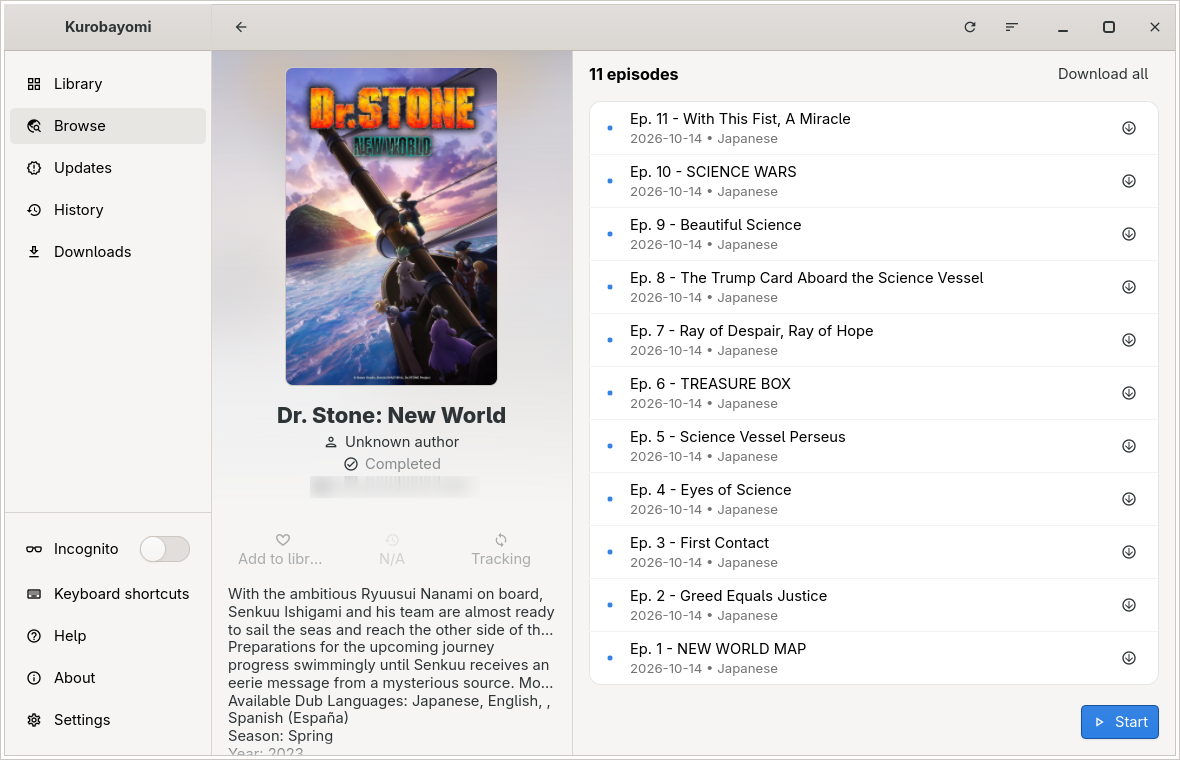
- Start begins, Resume goes on where you stopped.
- Add to library keeps the title in your Library.
Anime plays inside the app. The player has the time bar, volume, the next and previous episode, menus for quality and server, for subtitles and audio, and for speed. Full screen shows only the video; Esc leaves it. When an opening or an ending plays, a Skip button appears.
Manga opens in the reader. Turn pages with the arrow keys, the space bar or the mouse wheel. The last page of a chapter leads straight into the next one.
Kurobayomi remembers where you stopped in every title.
6. Your library
Titles you add show up in Library. Until you add one, it tells you how to find something.
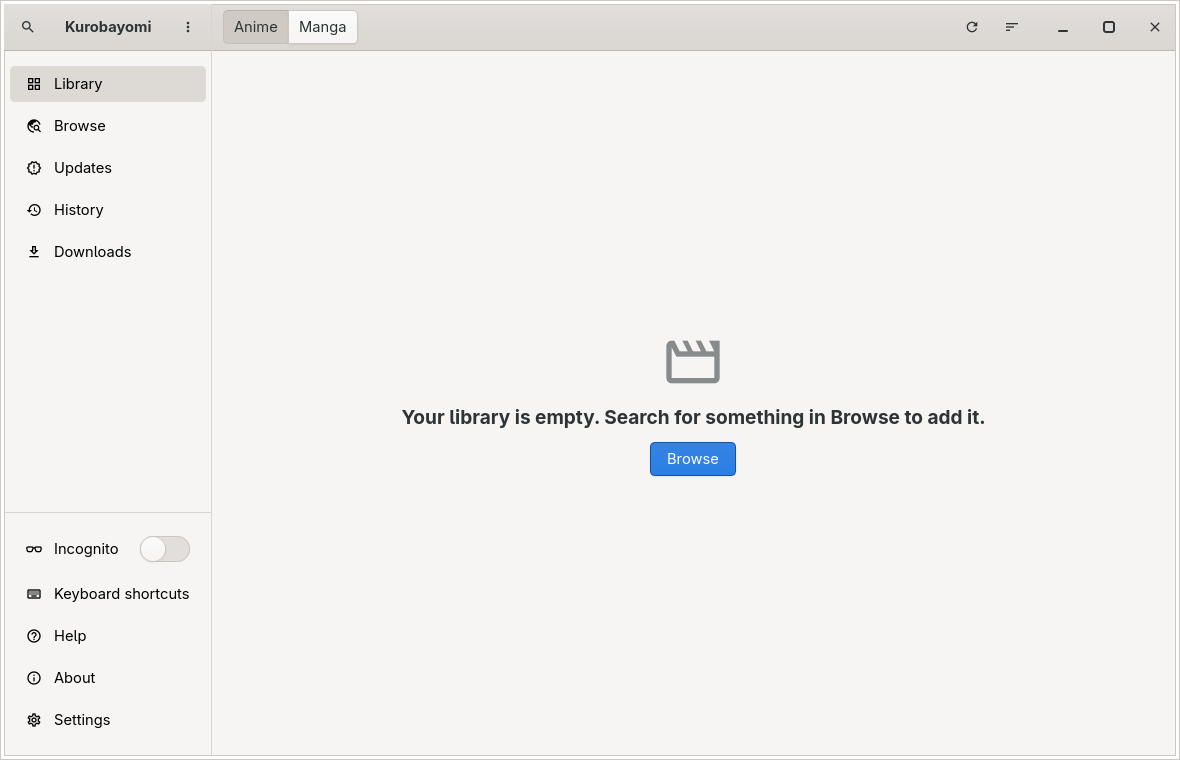
The sidebar also has:
- Updates: new episodes and chapters of the titles in your library.
- History: what you watched and read recently.
- Downloads: what is downloading and what is waiting.
At the bottom of the sidebar are Incognito (while it is on, nothing goes into History), Keyboard shortcuts, Help, About and Settings. The ⋮ menu next to the search button holds what the current page can do, for example adding a folder of your own files to the Library. In a small window the sidebar becomes a bar at the bottom, and the rest is in its ☰ menu.
Where your files go
Downloads and backups go to Kurobayomi in your home folder: Anime and Manga hold the downloads, Backups the backups and Local your own folders. To use another folder, open Settings → Backup and restore and click Storage location. New downloads go there after a restart; files already downloaded stay where they are.
Restore a backup
You can bring back a backup from Kurobayomi, Aniyomi or Tachiyomi (a file that ends in .tachibk): click Restore from a backup on the welcome screen, or open Settings → Backup and restore and click Restore backup.
Connect AniList (optional)
To keep your progress on AniList, open Settings → Sources and tracking and log in to AniList.